Go to Options>CreditCard Batch(S)ettlement

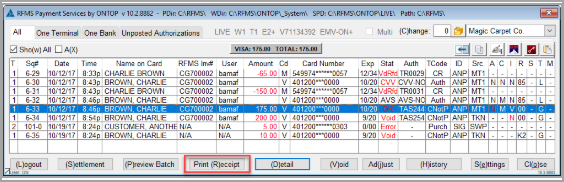
If the receipt is in the Current Batch
Highlight the desired transaction and select Print Receipt at the bottom of the screen.
If the receipt is in the Last Settled Batch
Click History button at the bottom of the screen.
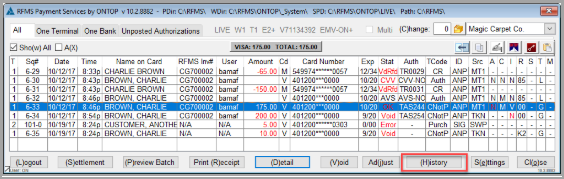
Highlight the desired transaction and select Print Receipt at the bottom of the screen.
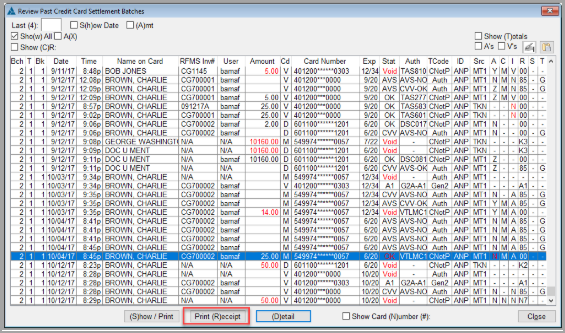
If the desired receipt is in an earlier batch there are two ways to find it
From the History screen, click the Batch Lookup button in the upper right corner.
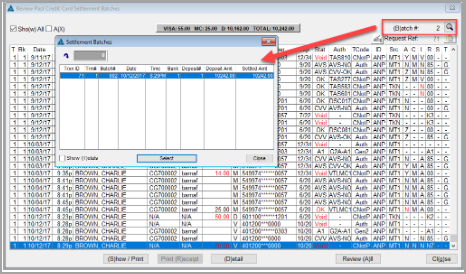
From the lookup screen, highlight the desired batch and click Select. Then highlight the desired transaction and press Print Receipt.
Older transactions can also be found on the Review All window, which is accessed by pressing “Review All” from the History/Last Settled Batch window.
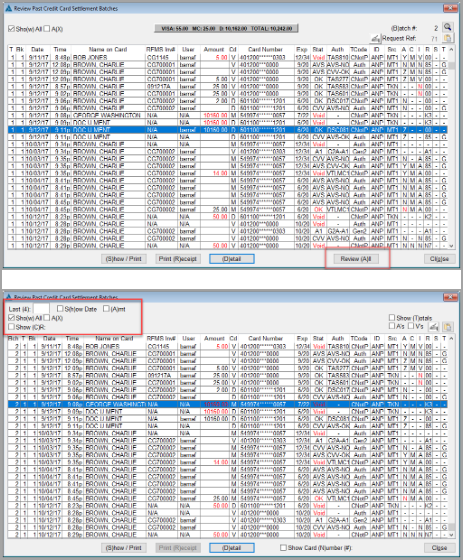
From the Review All screen, several filters can be used to find the transaction. These include:
- The last 4 digits of the card
- A Date Range – Click the Show Date option – and then enter a Range of Dates
- A Matching amount – Click the Amt option – and then enter a Matching Amount
- A Range of Amounts – Click the Amt option – and then enter a Range of Amounts
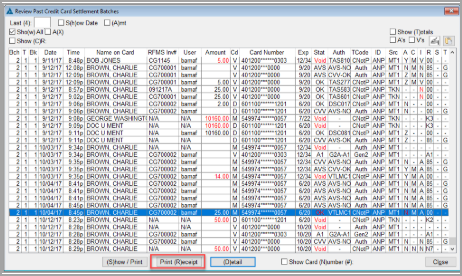

The Email Receipt option, if set up, will always initiate directly after Receipt Printing.